What a wall is
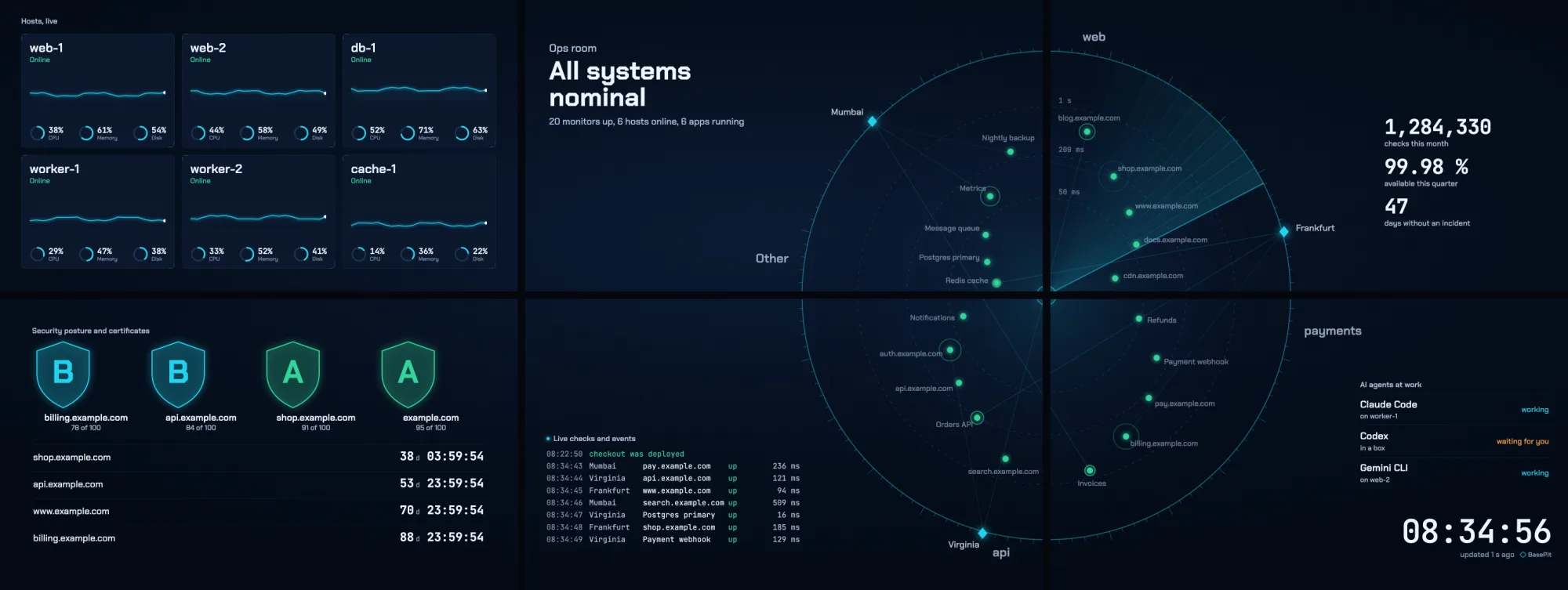
A wall is one room's picture of your organisation: one TV, or a matrix of TVs up to four across and four down, drawn as one picture across all of them. An organisation admin makes walls under Watch › NOC in the console, after Monitors, Incidents and Alerts.
A wall comes in these shapes: 1 TV, 2 side by side, 2 stacked, 2 × 2, 3 × 2, 3 × 3 and 4 × 4, or any other size up to four by four.
Any TV with a browser works. For the full effect, plug a streaming stick into each TV, or drive the whole wall from one computer. There is nothing to install: the TV opens a web page. The same wall also opens in the console, in the page or full screen, for someone at a desk.
What it shows
Each TV shows a scene, or takes turns between up to eight of them, each for 5 seconds to 5 minutes (9 seconds unless you change it). The Radar and the Hive can spread across several TVs.
| Scene | What it draws |
|---|---|
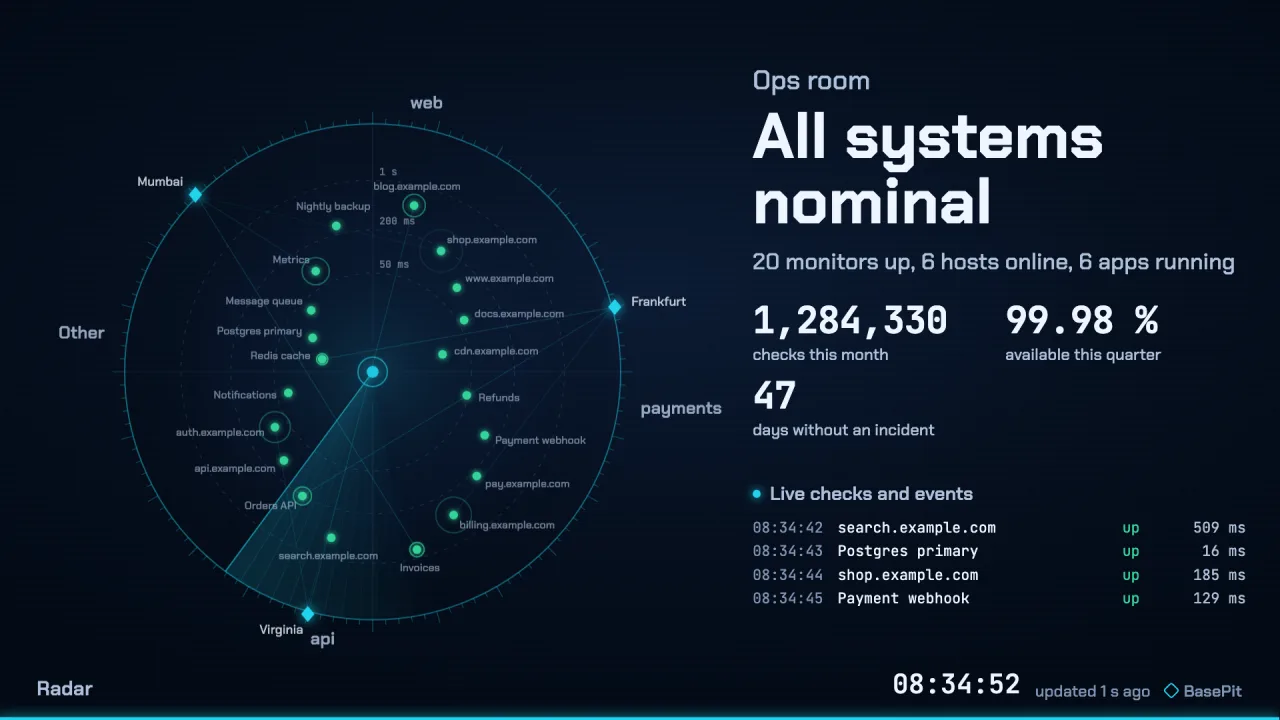
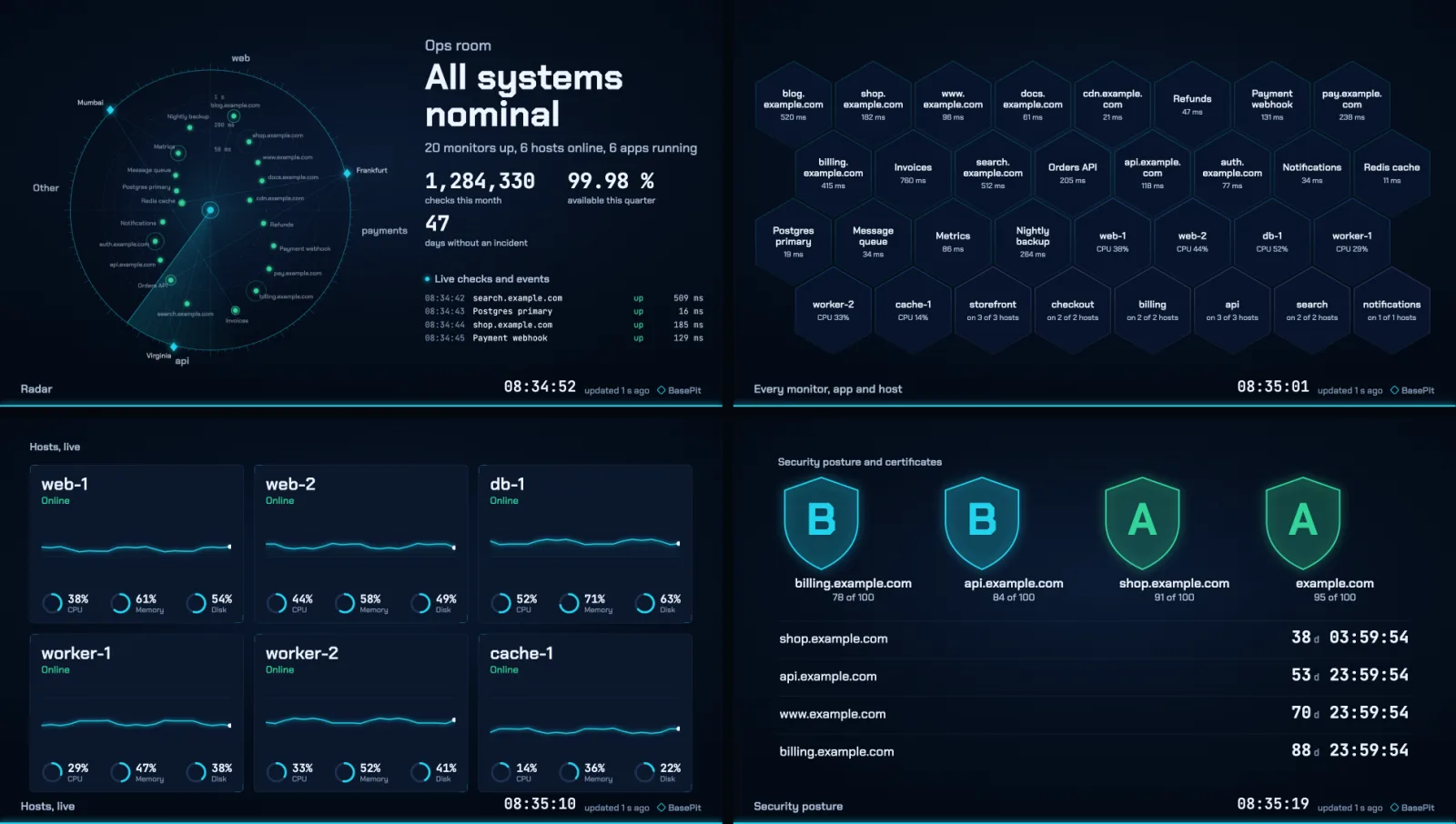
| Radar | Your organisation at the centre, and every monitor a point. A point's distance from the centre is its response time, with rings at 50 ms, 200 ms and 1 s, so a monitor that is slowing drifts outward before anyone is paged. A down monitor sits at the rim, red and pulsing. The quarters are tags, and each place your checks run from is a beacon on the rim. Every real check is a ring at its point, green or red, with a beam from its place. |
| Every monitor, app and host | A hexagon for each, with its name and one fact. A problem's hexagon is filled. |
| Hosts, live | A card for each host, with its CPU over the last 10 minutes, moving as readings arrive, and meters for CPU, memory and disk. |
| Security posture and certificates | Up to four of your Toolbox things, each with its security grade from A to F and its score out of 100, and up to four certificates from your HTTPS monitors, the soonest to expire, counting down by the second. Shown when the organisation has something in the Toolbox or an HTTPS monitor. |
| Live checks and events | A terminal-style feed of real checks, incidents, alerts and releases. |
| This organisation, counted | Checks this month, availability this quarter, and days without an incident. |
| AI agents at work | Your AI coding sessions, working or waiting for you, updated once a minute. Never what is in them. Shown when the organisation has sessions. |
| Who and when | The wall's title, your organisation's own logo, the headline (All systems nominal, 1 needs attention, 1 down) and the clock. |
The Radar's turning sweep is decoration. The points, rings, beams and traces are not: each one is a real check or a real reading.
Calm, attention, red alert
The whole wall has one mood, and every TV on it shares it.
- Calm. Deep blue.
- Attention. Amber creeps in from the edges: for example, a site is down from one place only. Nobody is paged for that.
- Red alert. A monitor is down from every place it is checked from, a host is offline, an app is down, or someone has opened an incident by hand. A red band across the top of every TV names what is down and for how long, and a red wave crosses every TV from the failing point. The incident takes its place on the wall: the cause and where it is seen from, a timer, the incident's number and status, who is on it, and which channel was paged and when.
- Restored. A green wave, then calm.
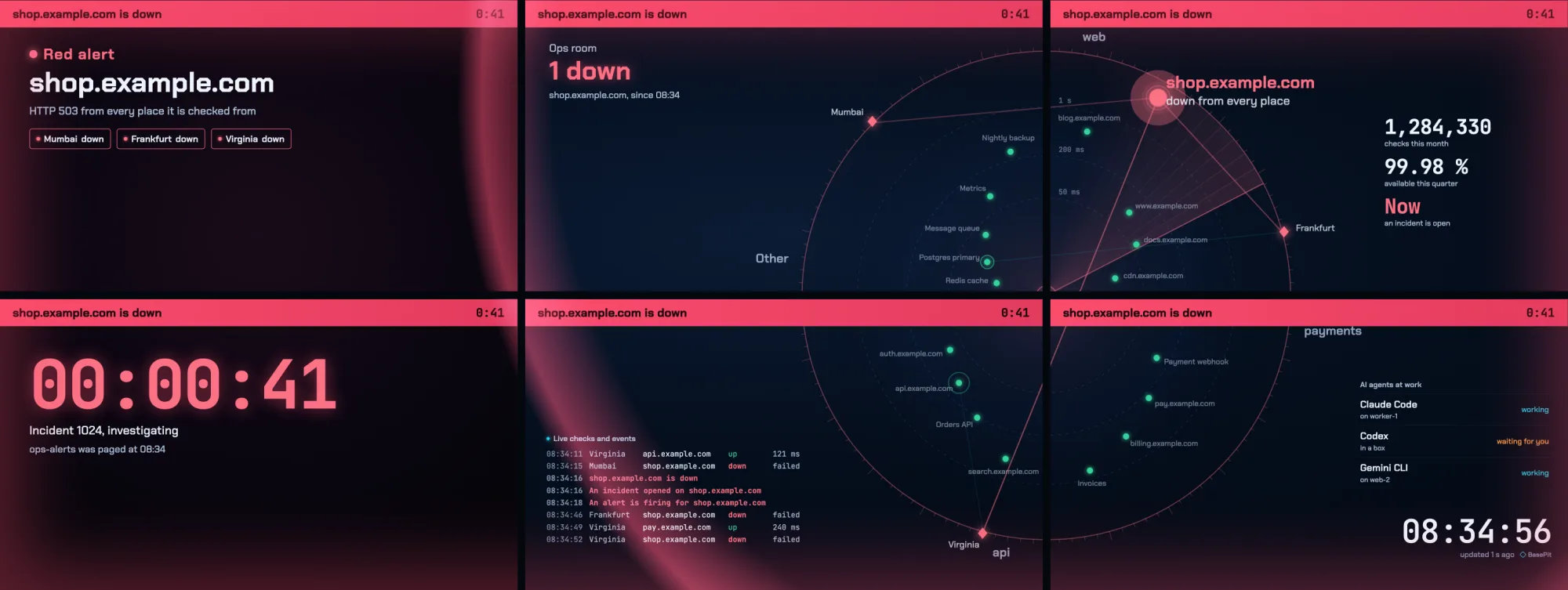
A quiet, something paused or turned off, a maintenance window or a deploy window never turns a wall red.
And a wall is never green when it cannot hear. After 45 seconds without word from BasePit, every TV says Not updated since 14:02 — BasePit cannot be reached, dims, stops all motion, and keeps trying.
Shaping a wall
New wall starts from a ready composition for the shape you pick: Director for one TV, Pair for two side by side, Tower for two stacked, Square for 2 × 2, Command for 3 × 2, Bridge for 3 × 3, Mission for 4 × 4, and Auto for any other shape. Then change what you like:
- which scene each TV shows, or the scenes it takes turns between, and for how long;
- the Radar or the Hive spread across several TVs, with corner panels on a spread Radar;
- where the incident appears in red alert;
- tags that narrow the wall to part of your organisation, and the Radar's quarters;
- people's names, or someone for a wall in a lobby where visitors read it;
- the clock's time zone, and your organisation's logo.
Beside the form is a live preview, drawn from your own data. Try red alert plays a red alert on it: a rehearsal on this preview. Nothing is paged and no screen changes.
Putting a TV on the wall
- On the TV's browser, open app.basepit.com/tv. It shows an 8-character code, such as
K7QM-4XP2, and where to type it. A code lasts 10 minutes and works once. - In BasePit, open Watch › NOC › Screens › Pair a screen. Type the code, and choose the wall and the TV's place on it, or the whole wall on one computer. Before you confirm, it says which code, wall, place and organisation.
- The TV starts, showing BasePit NOC, Linking to BasePit, what it counts and Online, and runs until you remove it. Remove it in the console and it goes back to showing a new code.
The TV's browser must keep cookies. If it does not, the TV says so.
A wall of TVs
- Identify makes every TV show its place number for 10 seconds. If two are swapped, Move to… fixes it.
- Line up the bezels… draws a diagonal line across every TV. Move one slider until the line runs straight across the gaps, and from then on what a bezel covers is hidden, as on a real video wall.
- The TVs never talk to each other. Each one follows BasePit's clock, so the sweep and the red wave line up from one TV to the next.
A TV can only look
- A TV never signs in and never holds a person's session. It cannot restart, acknowledge or change anything.
- A pairing code grants nothing on its own. It lasts 10 minutes and works once.
- The TV's key sits in a cookie the page's own scripts cannot read, and never in an address. BasePit keeps only a hash of it.
- Each organisation sees only its own walls and its own data. A TV shows the whole organisation, narrowed by its wall's tags; a person in the console sees only what their access allows.
- A wall shows names: of monitors, hosts, apps, the places checks run from, channels, and people if the wall allows. It never shows addresses, secrets or what is in an AI session.
- An uploaded logo is served sandboxed, and BasePit never fetches one from anywhere else.
- Paging does not change. The wall only reads.
Made to run for weeks
- Checks reach the wall as they happen, over a live stream with a heartbeat every 15 seconds and a full re-read every minute. If a proxy cuts the stream, the TV reads every 15 seconds instead and simply stops blipping.
- The TV keeps itself awake where the browser allows it, and reloads once a day at a quiet moment: never in red alert, and never while BasePit cannot be reached. After a fault it shows a still screen and starts again a minute later.
- A TV that struggles steps its effects down, from full to light to still, and never drops a fact. A reduced-motion setting means still from the start.
- What stays on screen drifts a few pixels over an hour, against burn-in on OLED TVs.
Free
Walls and screens cost no credits, and they keep working when an organisation runs out. Its checks pause then, and every wall turns red and says so: Checks are paused: the organisation is out of credits. See pricing for what the checks themselves use.
Limits
- 20 walls and 50 screens per organisation; a wall is 1 to 4 TVs across and 1 to 4 down.
- An organisation admin makes walls and pairs screens. Anyone who can see the fleet can open a wall in the console.
- The NOC pages in the console need a screen at least 1024 pixels wide, so they are not for phones.
- A wall says what is happening now, this month and this quarter; its only trace is each host's last 10 minutes of CPU. Longer history is in the console, on Home's charts and each monitor's response-time chart.
- No sound, and nothing can be done from the wall itself.
- The small BasePit mark is on every wall.